Fusion vs SolidWorks vs FreeCAD vs Onshape: Which CAD Software Is Right for You?
An honest comparison of four popular CAD programs by price model, platform, learning curve and the kind of work each one suits best.
MeriForge team · · 3 min read
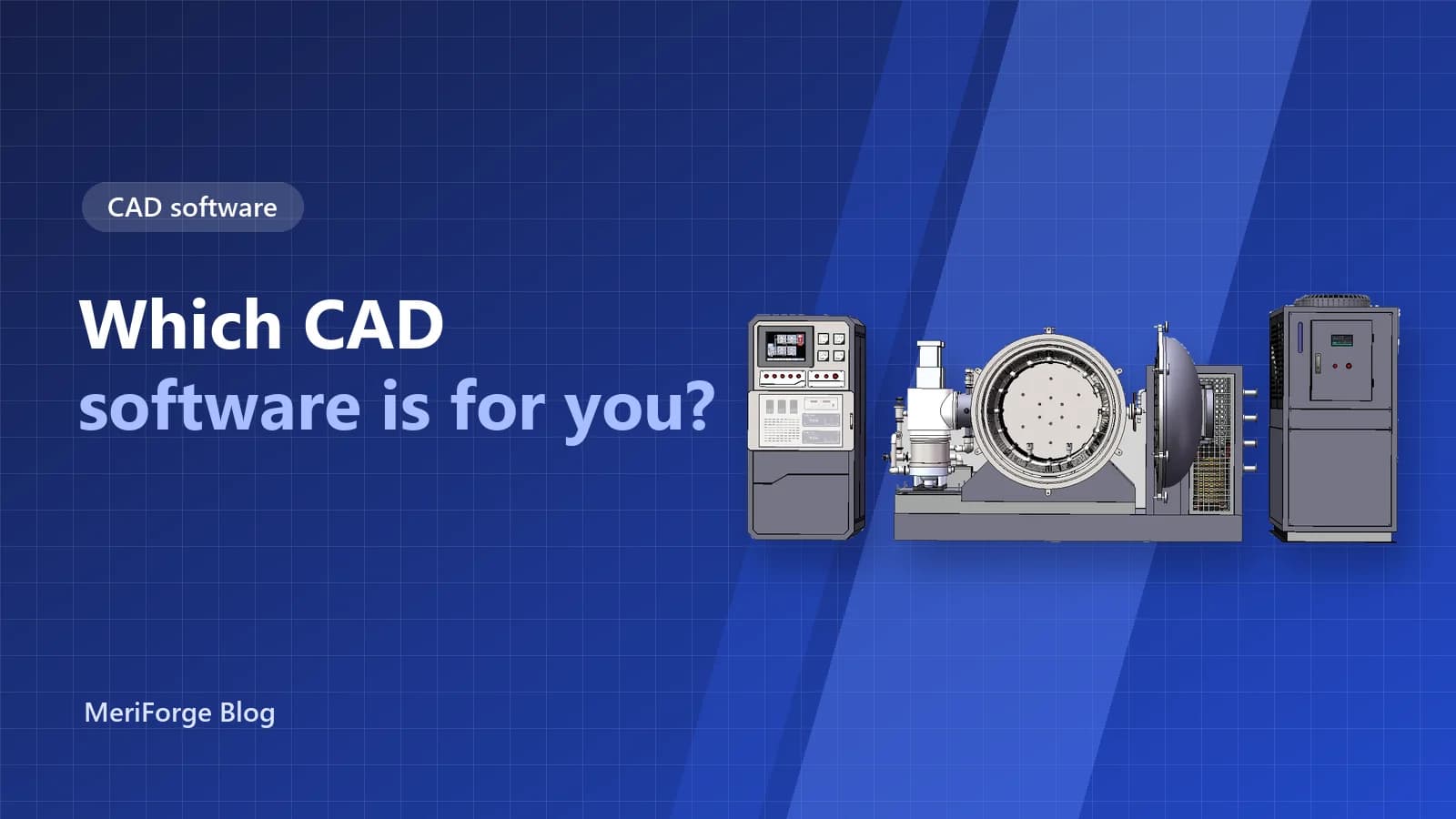
All four programs here are parametric solid modellers: you sketch, add dimensions, build features and edit them later. They can all produce professional parts. The differences are in price model, platform, collaboration and the ecosystem around them. Pricing and licence terms change often, so check each vendor's website before deciding.
SolidWorks
Platform: Windows desktop (with cloud-connected offerings available). Price model: commercial licences and subscriptions; discounted options exist for students, and a lower-cost licence is offered for hobbyists through the vendor's maker programme.
Strengths
- Industry standard in many engineering companies, so skills transfer directly to jobs.
- Mature tools for parts, large assemblies, sheet metal, weldments, surfacing and 2D drawings.
- Huge community, tutorials and certification paths.
Watch out for
- Windows only for the classic desktop version, and it likes a capable PC.
- Native files are not backwards compatible between versions.
Best for: mechanical engineers, product designers, and anyone aiming for a job in industry.
Fusion
Platform: Windows and macOS, with cloud storage. Price model: subscription; a free personal-use licence with some limits has been available for hobbyists.
Strengths
- Combines CAD, CAM (toolpaths for CNC), simulation, rendering and electronics in one program.
- Friendly to beginners, with both parametric and direct modelling.
- Runs well on Mac.
Watch out for
- Files live in the cloud by default.
- Free-tier features and limits have changed over time.
Best for: makers, small workshops and startups who design and machine their own parts.
Onshape
Platform: runs in the web browser and on mobile; nothing to install. Price model: subscription for professionals; a free plan exists where documents are public.
Strengths
- Real-time collaboration, like a shared document: several people can edit one model.
- Built-in version control with branching and merging.
- Works on any computer with a modern browser, including Chromebooks.
Watch out for
- Needs an internet connection.
- On the free plan your designs are public.
Best for: teams, schools, and people who switch between computers.
FreeCAD
Platform: Windows, macOS and Linux, desktop. Price model: free and open source, for any use including commercial.
Strengths
- No licence costs or accounts, ever. Your files stay on your computer.
- Highly extensible with workbenches for parts, assemblies, FEM analysis, architecture, CAM and more.
- Recent versions have improved the interface and assembly tools considerably.
Watch out for
- Steeper learning curve and a less polished workflow than commercial tools.
- Topological naming problems (features breaking when earlier geometry changes) have been a historic pain point; newer releases have made major progress here.
Best for: hobbyists, Linux users, open-source projects and anyone who wants full ownership of their tools.
Quick comparison
| SolidWorks | Fusion | Onshape | FreeCAD | |
|---|---|---|---|---|
| Runs on | Windows | Win / Mac | Browser | Win / Mac / Linux |
| Cost model | Commercial | Subscription (free personal tier) | Subscription (free public plan) | Free, open source |
| Built-in CAM | Add-on | Yes | Via partners | Yes (workbench) |
| Collaboration | Via PDM/cloud | Cloud | Real-time | Files / Git |
| Learning curve | Medium | Gentle | Gentle | Steeper |
They all speak STEP
Whatever you choose, you are not locked out of other people's designs. All four import and export STEP, the neutral solid format, and STL for 3D printing. That is why downloadable designs that include STEP files work for everyone.
How to choose
- Want a career in mechanical engineering? Learn SolidWorks (and pick up a second tool later).
- Designing and machining your own parts at home? .