STL vs STEP vs SLDPRT: Which CAD File Format Should You Download?
Mesh or solid, native or neutral? A plain-English guide to the three file formats you meet most often when you buy or download a 3D design.
MeriForge team · · 4 min read
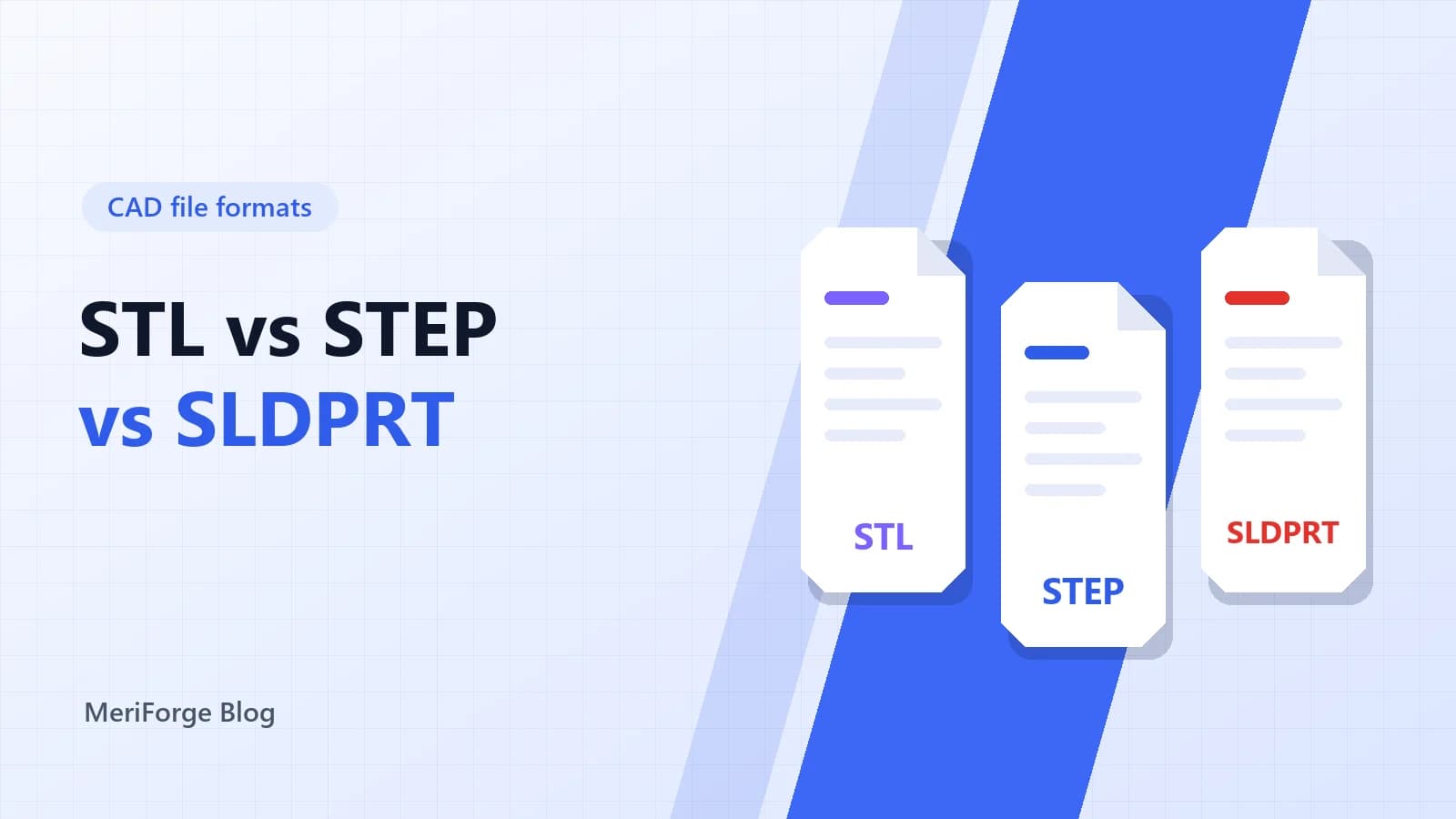
When you download a design you are often offered the same part in several formats. They are not interchangeable. Each one stores different information, and picking the wrong one can mean a part you cannot edit, or a file your printer cannot use.
This guide explains the three formats you will meet most often, what each is good for, and how to choose.
The short answer
- Want to 3D print it as it is? Download the STL (or 3MF if offered).
- Want to edit or reuse the geometry in any CAD program? Download the STEP.
- You use SolidWorks and want the full feature history? Download the SLDPRT / SLDASM.
If you are unsure, take the STEP and the STL. Between them they cover almost every use.
STL: a surface made of triangles
STL describes only the outside skin of a part, approximated by thousands of small triangles. There are no real circles, no fillets, no dimensions, and no history of how the part was built.
Good for
- Slicers such as Cura, PrusaSlicer, Bambu Studio and OrcaSlicer
- Quick previews and online viewers
- Sculpted and organic shapes, where triangles are the natural description anyway
Limits
- A hole is a ring of flat facets, not a true cylinder, so you cannot simply "change the hole to 6 mm".
- Accuracy depends on how finely the file was exported. A coarse export shows visible facets on curves.
- No units are stored. Most slicers assume millimetres; if a part appears 25 times too small, it was probably exported in inches.
STEP: the universal solid
STEP (.step or .stp) is an ISO standard for exchanging solid models between CAD systems. It stores exact geometry: a cylinder is a mathematical cylinder, an edge is a precise curve, and faces know which solid they belong to.
Good for
- Opening a part in SolidWorks, Fusion, FreeCAD, Onshape, Inventor, Creo, CATIA and most other CAD tools
- Adding holes, cutting, shelling or combining the part with your own design
- Sending to CNC machining or sheet-metal shops, who usually ask for STEP first
Limits
- The feature tree is not included. You get a "dumb" solid: you can add features on top of it, but you cannot go back and change the original sketch dimensions.
- Assemblies come through as a set of parts, without your original mates in most cases.
SLDPRT and SLDASM: native SolidWorks
These are the files SolidWorks itself saves. They contain everything: sketches, features in order, dimensions, configurations, materials and, for assemblies, the mates.
Good for
- Changing a dimension and letting the whole model update
- Reusing configurations (sizes, variants) the designer built in
- Learning, because you can study exactly how the part was modelled
Limits
- You need SolidWorks. Other programs can sometimes import the geometry, but the history is usually lost.
- Files are not backwards compatible: a part saved in SolidWorks 2024 cannot be opened in 2022. Check the version noted on the product page.
Other formats you may see
- 3MF: a modern replacement for STL that also stores units, colours and print settings. Use it if your slicer supports it.
- IGES (.igs): an older neutral format. It often carries surfaces rather than closed solids; prefer STEP when both are offered.
- DXF / DWG: 2D drawings, used for laser cutting, waterjet, CNC routing and plans.
- X_T (Parasolid): another solid exchange format that SolidWorks and many other tools read very cleanly.
A quick decision table
| Your goal | Best format |
|---|---|
| Print the part unchanged | STL or 3MF |
| Modify the part in any CAD tool | STEP |
| Modify with full history in SolidWorks | SLDPRT / SLDASM |
| Machine it or send it to a supplier | STEP (plus a PDF drawing) |
| Laser or waterjet cut a flat part | DXF |
Why good marketplaces include several formats
A designer who provides only an STL is giving you a finished print. A designer who also provides STEP and native files is giving you a starting point you can adapt. On MeriForge, every product page lists the included formats, so you know before you buy whether you are getting a printable mesh, an editable solid, or both.